

WordPress
Child Theme
Use a child theme to keep customizations safe during updates.
WordPress child themes let you apply custom code changes while keeping your changes safe when the parent theme updates.
Support policy: child themes are often used to customize core code. Customizations of this nature can fall outside support scope, and issues caused by custom edits may not be covered.
What is a child theme?
A child theme inherits functionality and styling from a parent theme (Nexsas). It’s the recommended way to modify an existing theme because custom code changes won’t be lost after updating the parent theme.
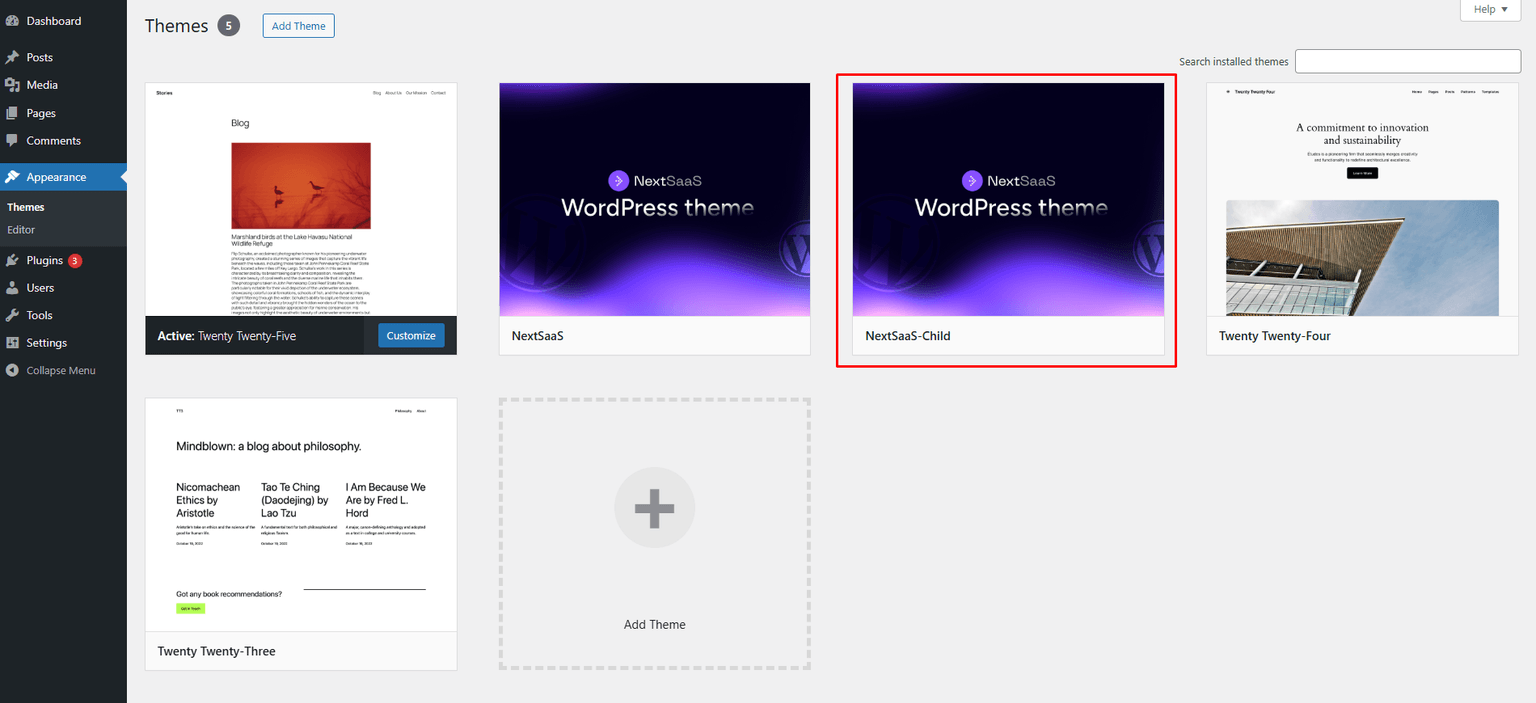
Downloading and installing Nexsas child theme
The Nexsas child theme is included when you download the full package from ThemeForest.
- Log in to ThemeForest and open the Downloads tab
- Download Nexsas using All Files & Documentation
- Extract the zip to get a folder like
Nexsas_Full_Package - Go to
Nexsas_Full_Package > Nexsas Themeand locateNexsas.zipandNexsas-child.zip - Install
Nexsas.zipfirst (parent theme), then installNexsas-child.zip(child theme) using the same upload/FTP method
Methods of modifying a child theme
Method 1: Copying files from parent theme
Copying template files from the parent theme into the child theme is common and straightforward.
- Only copy what you need (template files are preferred)
- To override templates, copy the
TEMPLATES/directory from the parent theme to the child theme and edit the required files
Method 2: Actions and filters
The safest way to modify theme behavior is using actions and filters (built-in Nexsas hooks and standard WordPress hooks).
Useful documentation
- WordPress Codex: https://codex.wordpress.org/Child_Themes
- WordPress Developers Handbook: https://developer.wordpress.org/themes/advanced-topics/child-themes/
- WPBeginner video: http://www.wpbeginner.com/wp-themes/how-to-create-a-wordpress-child-theme-video/