

WordPress
Contact Form
Use Contact Form 7 with Nexsas and add forms via shortcode or Elementor.
NextSaaS integrates with Contact Form 7. Demo content uses Contact Form 7, so it’s easy to create and manage contact forms.
Installing Contact Form 7
Install the plugin
- Go to Plugins → Add New
- Search for “Contact Form 7”
- Click Install Now
- Click Activate
You can also install it from Appearance → Install Plugins if it appears in recommended plugins.
Create your first contact form
- Go to Contact → Contact Forms
- Edit the default form or click Add New
Video tutorial
Basic form setup
Default fields usually include Name, Email, Subject, Message, and Submit.
Common form tags
[text* your-name] - Required text field
[email* your-email] - Required email field
[tel your-phone] - Phone number field
[textarea* your-message] - Required textarea
[submit "Send"] - Submit button
Configuring email notifications
In the form editor:
- Mail tab: set To/From/Subject and message body tags like
[your-name] - Mail (2) tab: enable auto-reply to
[your-email]
Adding forms to pages
Using shortcode
- Copy the shortcode (example:
[contact-form-7 id="123"]) - Paste it into your page content
Using Elementor
- Edit the page with Elementor
- Add the Contact Form 7 widget
- Select your form
Styling contact forms
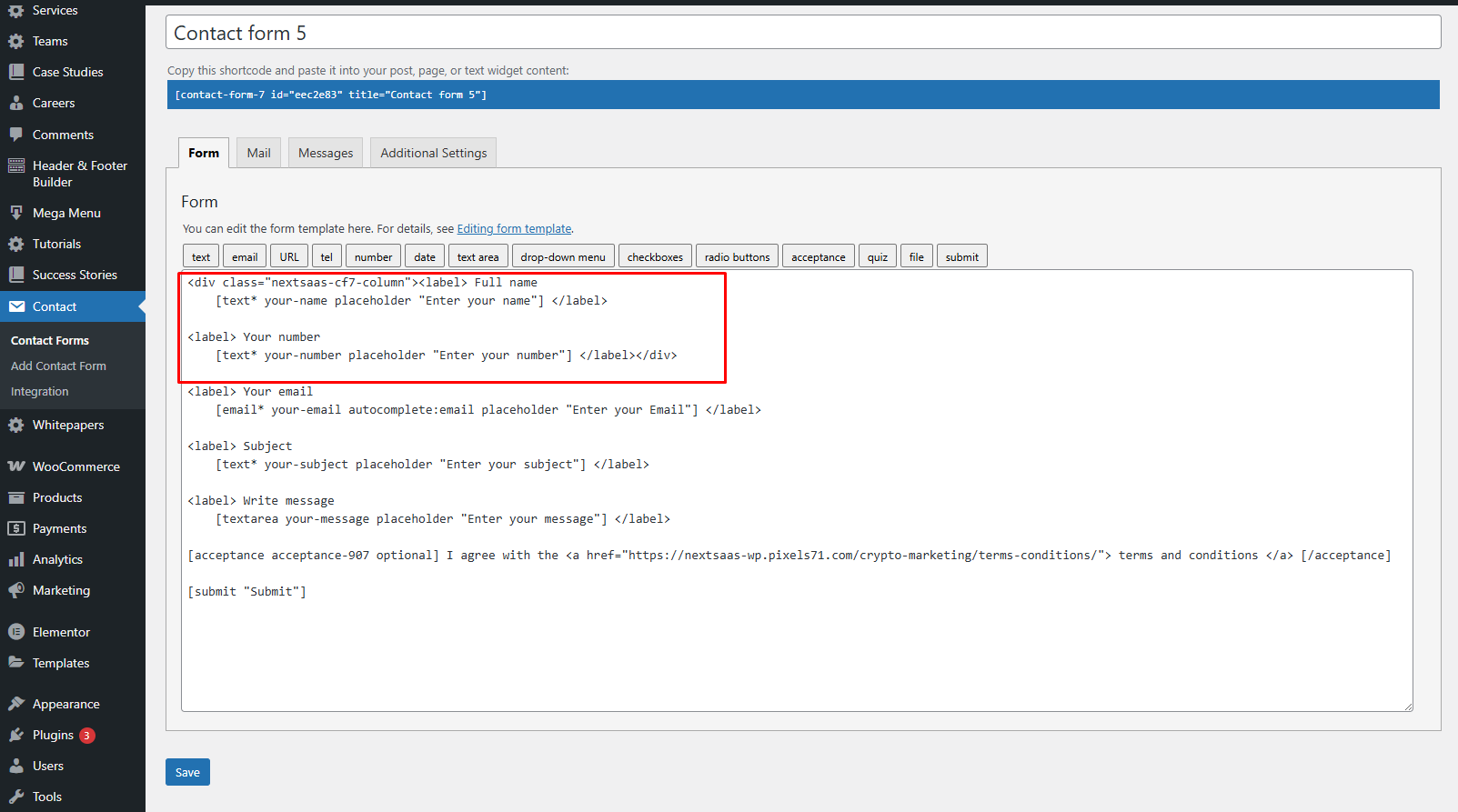
2-column input fields
To create 2 columns in a row, add a class on the wrapper div: .nextsaas-cf7-column.
Custom CSS
Add custom CSS in Theme Options → CSS Editor:
.wpcf7-form input[type='text'],
.wpcf7-form input[type='email'],
.wpcf7-form textarea {
  /* Your custom styles */
}

.wpcf7-form input[type='submit'] {
  /* Your custom styles */
}
Additional resources
Need help?
Email support: hello@pixels71.com