

Contact Form
NextSaaS integrates seamlessly with Contact Form 7, one of WordPress's most popular and reliable contact form plugins. All demo content uses Contact Form 7, making it easy to create and manage contact forms on your website.
Installing Contact Form 7#
Step 1: Install the Plugin
- Navigate to Plugins > Add New in your WordPress admin dashboard
- Search for "Contact Form 7"
- Click Install Now on the Contact Form 7 plugin
- Click Activate after installation
Alternatively, you can install it from Appearance > Install Plugins if it appears in the recommended plugins list.
Step 2: Create Your First Contact Form
- Go to Contact > Contact Forms in your WordPress admin
- You'll see a default contact form already created
- Click on the form name to edit it, or click Add New to create a custom form
Video Tutorial#
For a detailed walkthrough and insights into using Contact Form 7, watch our video tutorial:
Basic Form Setup#
Default Form Fields
Contact Form 7 comes with a default form that includes:
- Name field (text input)
- Email field (email input)
- Subject field (text input)
- Message field (textarea)
- Submit button
Customizing Form Fields
You can customize your form by editing the form template:
- Go to Contact > Contact Forms
- Click on your form to edit it
- Modify the form template using Contact Form 7's tag syntax
- Update the mail settings to configure email notifications
- Click Save when done
Common Form Tags
[text* your-name] - Required text field
[email* your-email] - Required email field
[tel your-phone] - Phone number field
[textarea* your-message] - Required textarea
[submit "Send"] - Submit button
Configuring Email Notifications#
Mail Settings
- In your contact form editor, go to the Mail tab
- Configure the To field (recipient email)
- Set the From field (sender email)
- Customize the Subject line
- Add form fields to the message body using tags like
[your-name],[your-email]
Mail (2) Settings
You can configure a second email (auto-reply) in the Mail (2) tab:
- Enable Use Mail (2)
- Set the recipient to
[your-email](the form submitter) - Create a thank you message
- Customize the subject line
Adding Forms to Pages#
Using Shortcode
- Copy the shortcode from your contact form (e.g.,
[contact-form-7 id="123"]) - Edit the page where you want the form
- Paste the shortcode in the content area
- Update or publish the page
Using Elementor
- Edit your page with Elementor
- Search for "Contact Form 7" widget
- Drag the widget to your desired location
- Select your contact form from the dropdown
- Customize the widget settings
- Update the page
Styling Contact Forms#
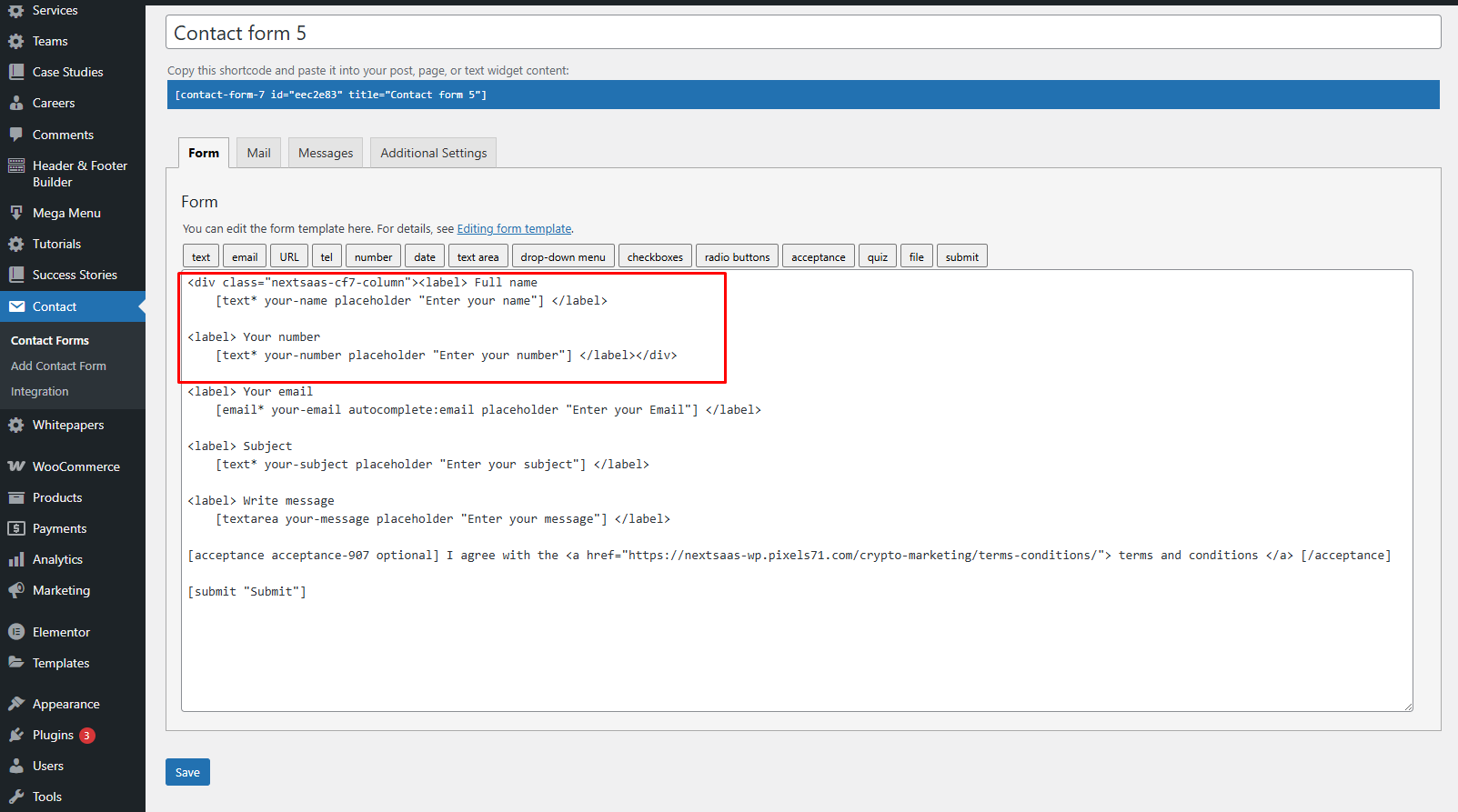
2 Column Input Fields
If you want 2 column in a row You just need toa add a class in a div .nextsaas-cf7-column.
Using Theme Options
NextSaaS includes built-in styling for Contact Form 7 forms that matches the theme design. The forms will automatically inherit your theme's color scheme and typography.
Custom CSS
To add custom styling, go to Theme Options > CSS Editor and add:
/* Style Contact Form 7 inputs */
.wpcf7-form input[type='text'],
.wpcf7-form input[type='email'],
.wpcf7-form textarea {
  /* Your custom styles */
}

/* Style submit button */
.wpcf7-form input[type='submit'] {
  /* Your custom styles */
}
Advanced Features#
Conditional Fields
Contact Form 7 supports conditional logic through add-ons like:
- Contact Form 7 Conditional Fields
- Smart Grid-layout Design for Contact Form 7
File Uploads
To add file upload functionality:
- Add
[file your-file]to your form template - Configure file size limits in Contact > Integration
- Set allowed file types
Spam Protection
Contact Form 7 includes built-in spam protection:
- Akismet Integration: Automatically filters spam
- reCAPTCHA: Add Google reCAPTCHA for additional protection
Troubleshooting#
Form Not Sending Emails
- Check your email settings in the form configuration
- Verify your hosting supports PHP mail function
- Consider using an SMTP plugin (WP Mail SMTP)
- Check spam folder for test emails
Form Not Displaying
- Verify the shortcode is correct
- Check if Contact Form 7 is activated
- Clear any caching plugins
- Check for JavaScript errors in browser console
Additional Resources#
Need Help?#
If you need assistance with Contact Form 7 setup, please contact our support team at hello@pixels71.com.