

Importing Demo Content
After activating the theme, there'll be suggested plugins listed at the top (if there aren't, you can go to 'Appearance > Install Plugins' section as well ). Try installing and activating these following plugins ( as it affects the importing process ). You can also install all suggested plugins at this step as well.
Nexsas comes with 38 professionally designed website demos that you can import with just one click. Each demo is a complete, ready-to-use website with all pages, content, and settings pre-configured. This makes it incredibly easy to get your website up and running quickly.
Simply click on a website to import. You can choose and set your homepage separately based on your preference.

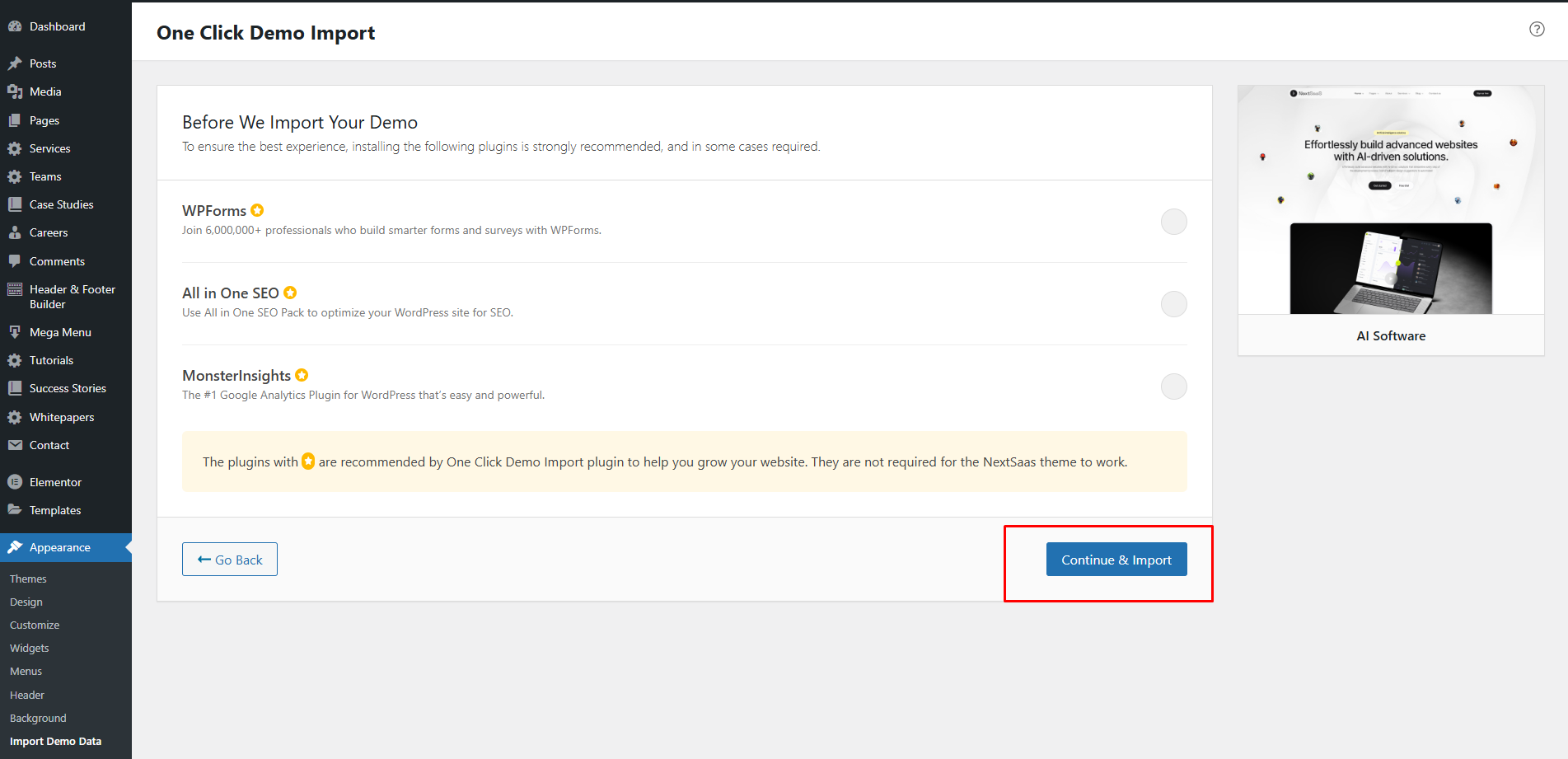
Note: All of your old data will be removed if you use this function.
Follow the steps mentioned on the screen, then, you'll get the site like the demo :)