

Theme Update
Auto Update using Envato Market#
- Install the Envato Envato Market #.
- Go to themeforest.net > Settings > API Keys.
- Generate an API key and store it in a text file as you will need it shortly.
- Now login into your WordPress admin dashboard
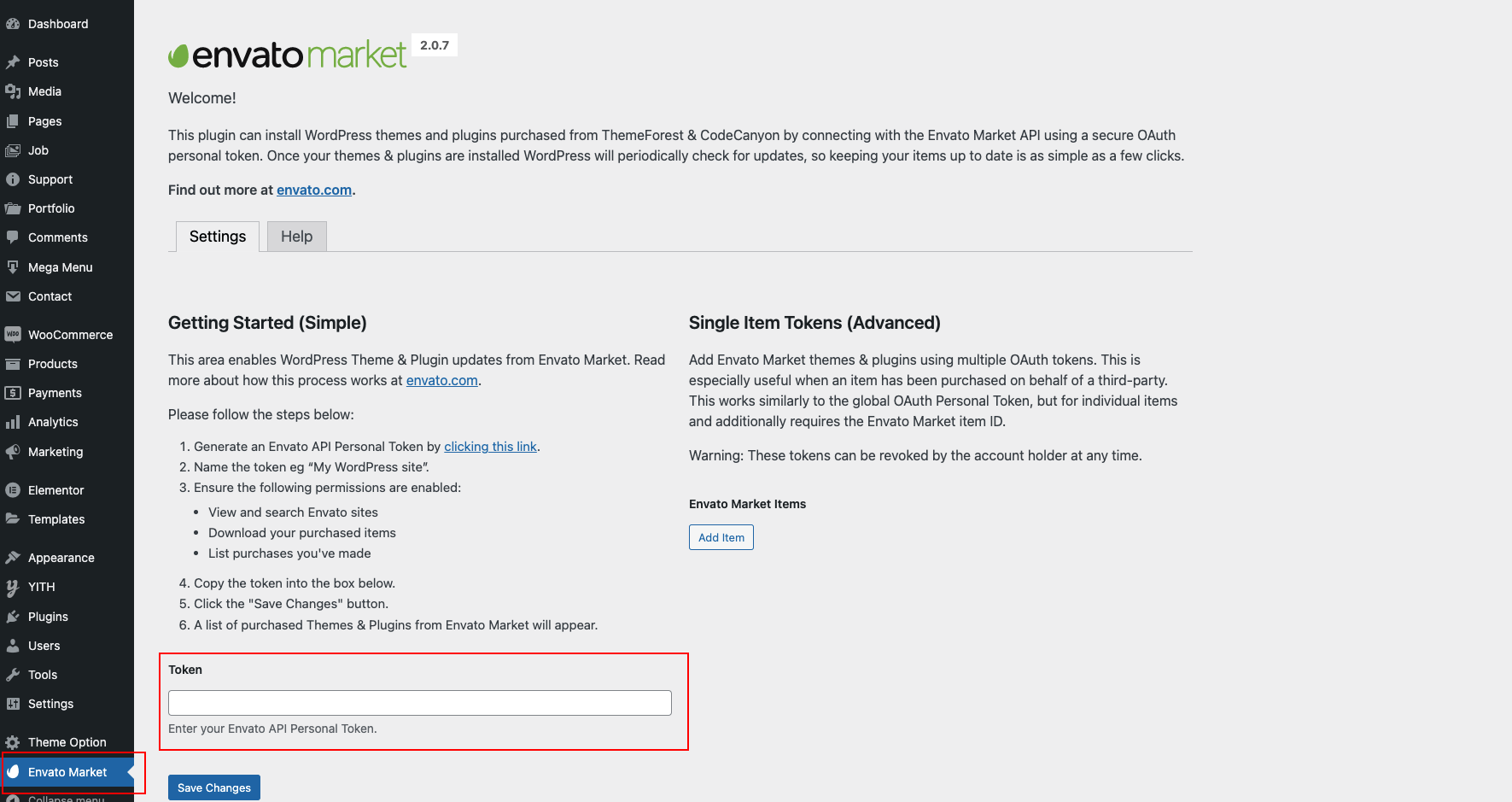
- From the left sidebar click on Envato Market.
- As shown in below screenshot fill the API key that you just retrieved from themeforest.net
- Save Settings.
- Once the page refreshes you will see the list of themes you have purchased.
- If there is a new version available you will get the "Update Automatically" link.
- The theme will be updated to the most recent version.
Manual Update Through WordPress Admin Panel#
- Navigate to Appearance > Themes and activate another theme to deactivate Nexsas
- Delete the existing installed Nexsas theme (old version)
- Unzip the file you just downloaded from ThemeForest and locate the WordPress theme file (e.g.,
nexsas.zip) - Still within the Themes section, click on Add New at the top, then click Upload Theme
- Click Choose File and locate the new theme zip file
- Click Install Now
- After installation, click Activate to activate the updated theme
Important Notes:
- Always backup your site before updating
- Your theme customizations in Theme Options will be preserved
- If you're using a child theme, only update the parent theme
- After updating, clear your cache and check that everything works correctly