

Header & Footer Builder
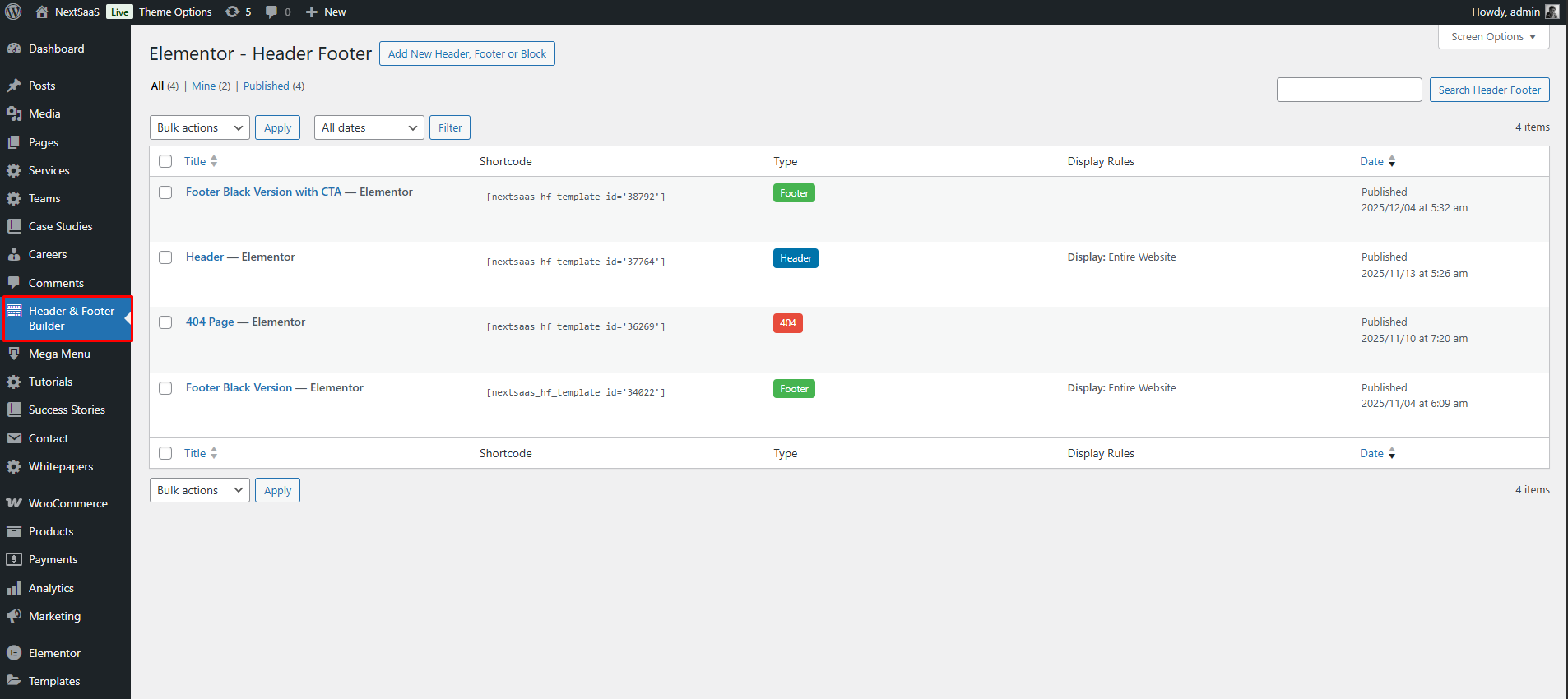
Nexsas includes a powerful Header & Footer Builder that allows you to create custom headers, footers, and 404 pages using Elementor. This gives you complete control over your site's header and footer design without touching any code.
Overview#
The Header & Footer Builder integrates seamlessly with Elementor, WordPress's most popular page builder. When you create custom header or footer templates using Elementor, they automatically appear in your theme options, allowing you to assign them globally or to specific pages.
Creating a Custom Header#
Step 1: Create a New Header Template
- Navigate to Header Footer Builder in your WordPress admin dashboard
- Click on Add New button
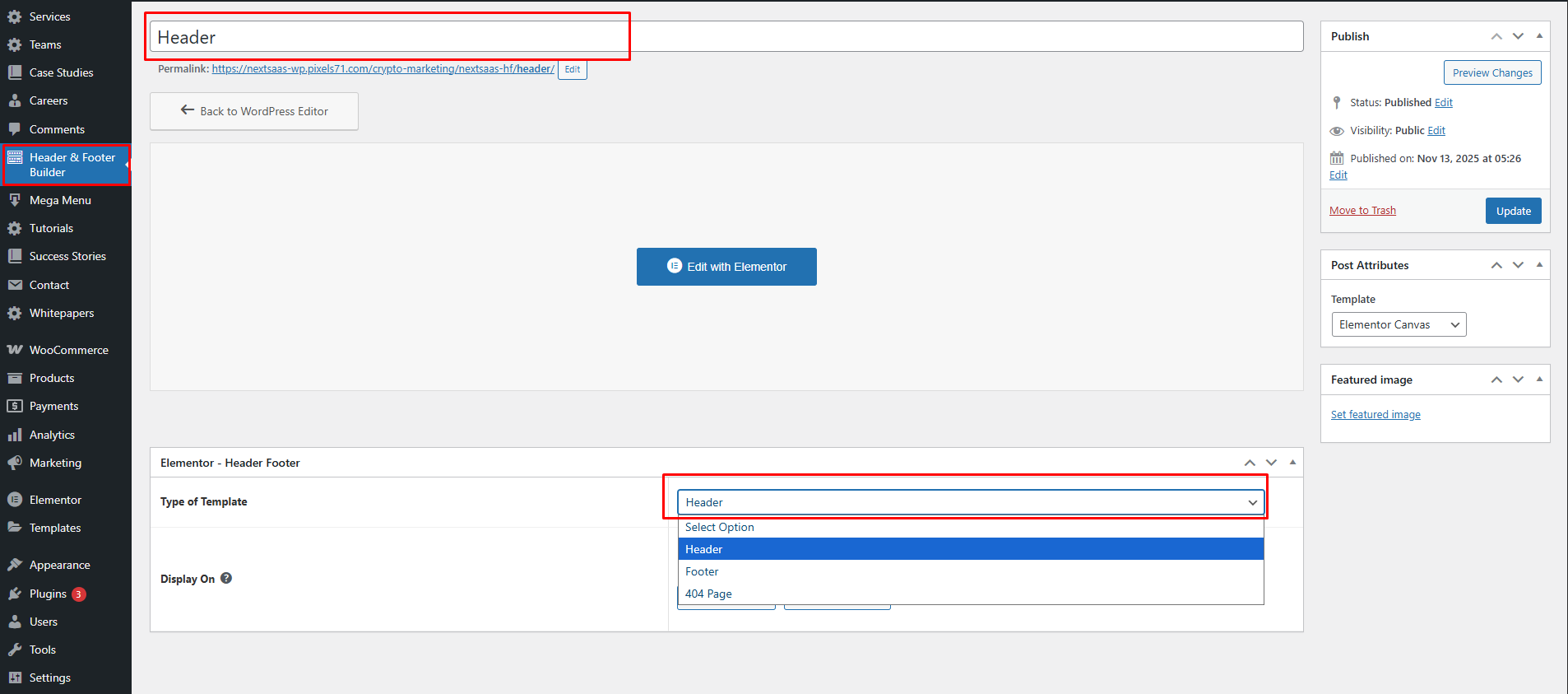
- Give your header a name (e.g., "Main Header" )
- Select Header as the "Type of Template"
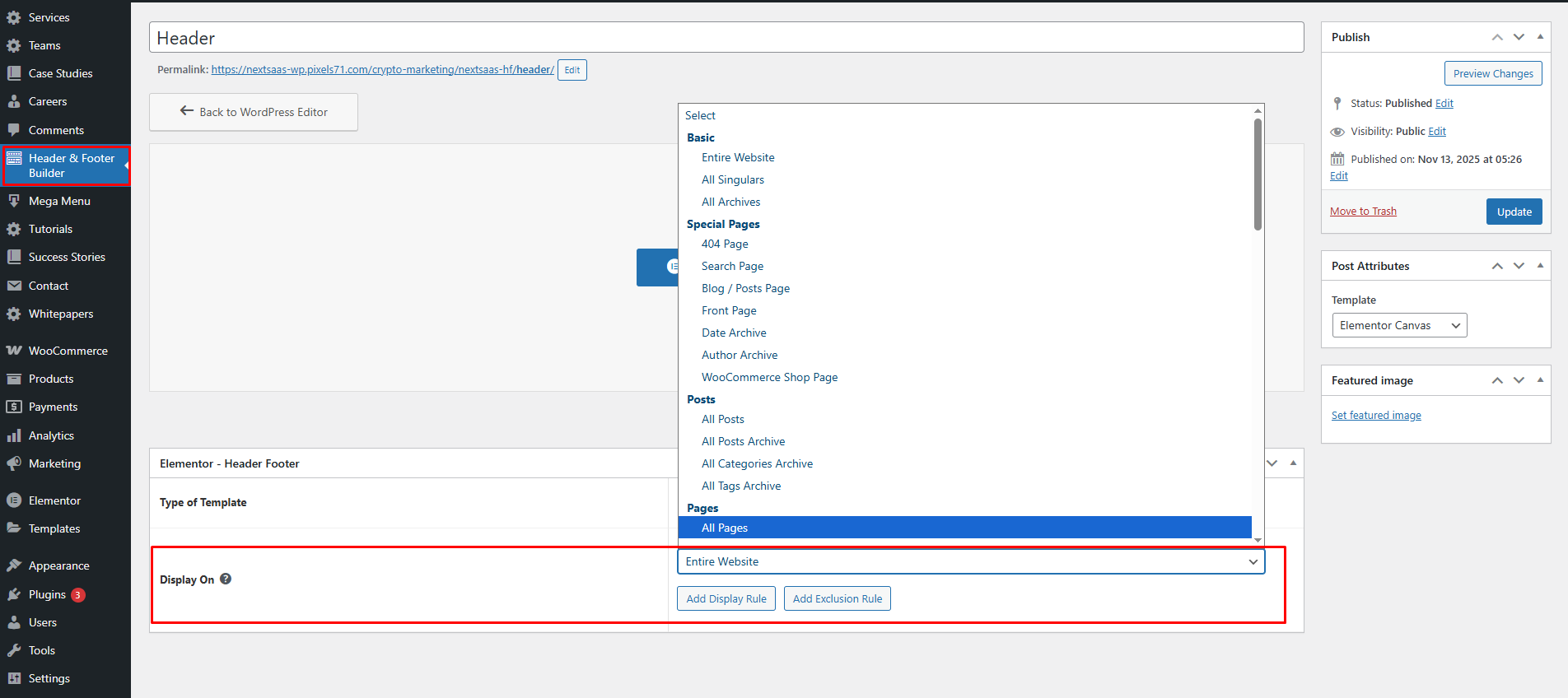
- Add Display On condition where you want to add the header (e.g., "Entire Website" )
- Click Publish Button
- Click Edit With Elementor.
Step 2: Design Your Header with Elementor
Once you're in the Elementor editor, you can design your header using any Elementor widgets:
- Logo: Add your site logo using the Image widget or Site Logo widget
- Navigation Menu: Use the Nav Menu widget to add your main navigation
- Buttons: Create call-to-action buttons
Creating a Custom Footer#
Step 1: Create a New Footer Template
- Navigate to Header Footer Builder in your WordPress admin dashboard
- Click on Add New button
- Select Footer as the "Type of Template"
- Give your footer a name (e.g., "Main Footer" )
- Add Display On condition where you want to add the header (e.g., "Entire Website" )
- Click Publish Button
- Click Edit With Elementor.
Step 2: Design Your Footer with Elementor
Design your footer layout using Elementor widgets. Common footer elements include:
- Logo & Tagline: Add your logo and company description
- Navigation Links: Create footer menu sections
- Contact Information: Add address, phone, email
- Social Media: Include social media icons and links
- Newsletter Signup: Add MailChimp integration
- Copyright Text: Display copyright Information
Creating a Custom 404 Page#
Step 1: Create a 404 Page Template
- Navigate to Header Footer Builder in your WordPress admin dashboard
- Click on Add New button
- Select 404 Page as the template type
- Give your 404 page a name
- Add Display On condition where you want to add the header (e.g., "404 Page" )
- Click Publish Button
- Click Edit With Elementor.
Step 2: Design Your 404 Page
Create an engaging 404 error page with:
- Error Message: "404 - Page Not Found" text
- Description: Explain that the page doesn't exist
- Home Button: Quick link back to homepage
Need Help?#
If you encounter any issues with the Header & Footer Builder, please contact our support team at hello@pixels71.com with your site details and screenshots of the issue.