

GSAP Animation
GSAP (GreenSock Animation Platform) is a powerful, industry-standard JavaScript animation library that helps you create smooth, high-performance animations across all major browsers. Nexsas includes built-in GSAP animation support, allowing you to add stunning animations to any Elementor widget with ease.
We've built a custom plugin to bring our theme to life with stunning animations. Right now, it includes three unique animation types: Reveal Me, Reveal Text, and Text Appear. And we're just getting started, more exciting features are on the way!
Overview#
Nexsas integrates GSAP animations directly into Elementor, giving you professional-grade animation capabilities without writing any code. You can apply animations to any widget, section, or column in your Elementor pages, headers, and footers.
Accessing GSAP Animation Settings#
To access the GSAP Animation settings:
- Edit any page, header, footer, or template with Elementor
- Select any widget, section, or column
- Go to the Advanced tab in the Elementor panel
- Scroll down to find the GSAP Animation section
- Expand the section to see all animation options
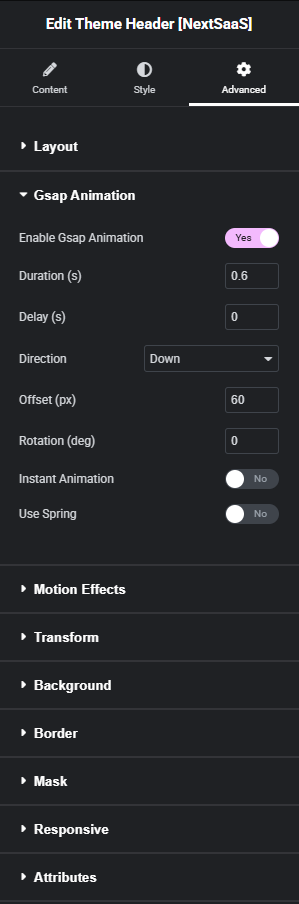
GSAP Animation Settings#
The GSAP Animation panel provides comprehensive control over your animations. Here's a detailed breakdown of each setting:
Enable GSAP Animation
Type: Toggle Switch
Default: No (Off)
This is the master switch that enables or disables GSAP animation for the selected element.
- Yes: Enables GSAP animation with all the settings below
- No: Disables GSAP animation (all other settings are ignored)
When to Use: Enable this when you want the element to animate on scroll or page load.
Duration (s)
Type: Number Input
Default: 0.6
Unit: Seconds
Controls how long the animation takes to complete.
- Lower values (0.1 - 0.3): Fast, snappy animations
- Medium values (0.4 - 0.8): Smooth, balanced animations (recommended)
- Higher values (1.0 - 2.0): Slow, dramatic animations
Examples:
0.3- Quick fade-in0.6- Standard smooth animation1.2- Slow, elegant reveal
Delay (s)
Type: Number Input
Default: 0
Unit: Seconds
Sets a delay before the animation starts. Useful for creating staggered animations when multiple elements animate in sequence.
- 0: Animation starts immediately
- 0.1 - 0.3: Small delay for subtle sequencing
- 0.5 - 1.0: Longer delay for dramatic effect
Use Case: When you have multiple elements and want them to animate one after another, increase the delay for each subsequent element (0, 0.2, 0.4, 0.6, etc.).
Direction
Type: Dropdown Menu
Default: Down
Options: Down, Up, Left, Right
Controls the direction from which the element animates into view.
- Down: Element slides/fades in from above (top to bottom)
- Up: Element slides/fades in from below (bottom to top)
- Left: Element slides/fades in from the right (right to left)
- Right: Element slides/fades in from the left (left to right)
Offset (px)
Type: Number Input
Default: 60
Unit: Pixels
Controls how far the element moves during the animation. This is the distance the element travels from its starting position to its final position.
Rotation (deg)
Type: Number Input
Default: 0
Unit: Degrees
Adds rotation to the animation. The element will rotate as it animates into view.
Instant Animation
Type: Toggle Switch
Default: No (Off)
Controls whether the animation triggers immediately on page load or waits for the element to enter the viewport.
- No: Animation triggers when element enters viewport (scroll-triggered)
- Yes: Animation plays immediately on page load (no scroll needed)
Use Spring
Type: Toggle Switch
Default: No (Off)
Enables spring physics animation for a more natural, bouncy effect instead of the standard easing.
Need Help?#
If you're looking for custom animations using GSAP, feel free to reach out. We'd love to help bring your ideas to life.