

Template Library
Nexsas includes a comprehensive Template Library integrated directly into Elementor, giving you access to hundreds of professionally designed content blocks and complete page templates. This feature allows you to quickly build beautiful pages by inserting pre-designed sections instead of creating everything from scratch.
Overview#
The Template Library is Elementor's built-in collection of pre-designed templates that you can insert into your pages. Nexsas enhances this with custom templates specifically designed for SaaS, Software, and Startup websites. You can access the library directly from the Elementor editor to browse, preview, and insert templates instantly.
Accessing the Template Library#
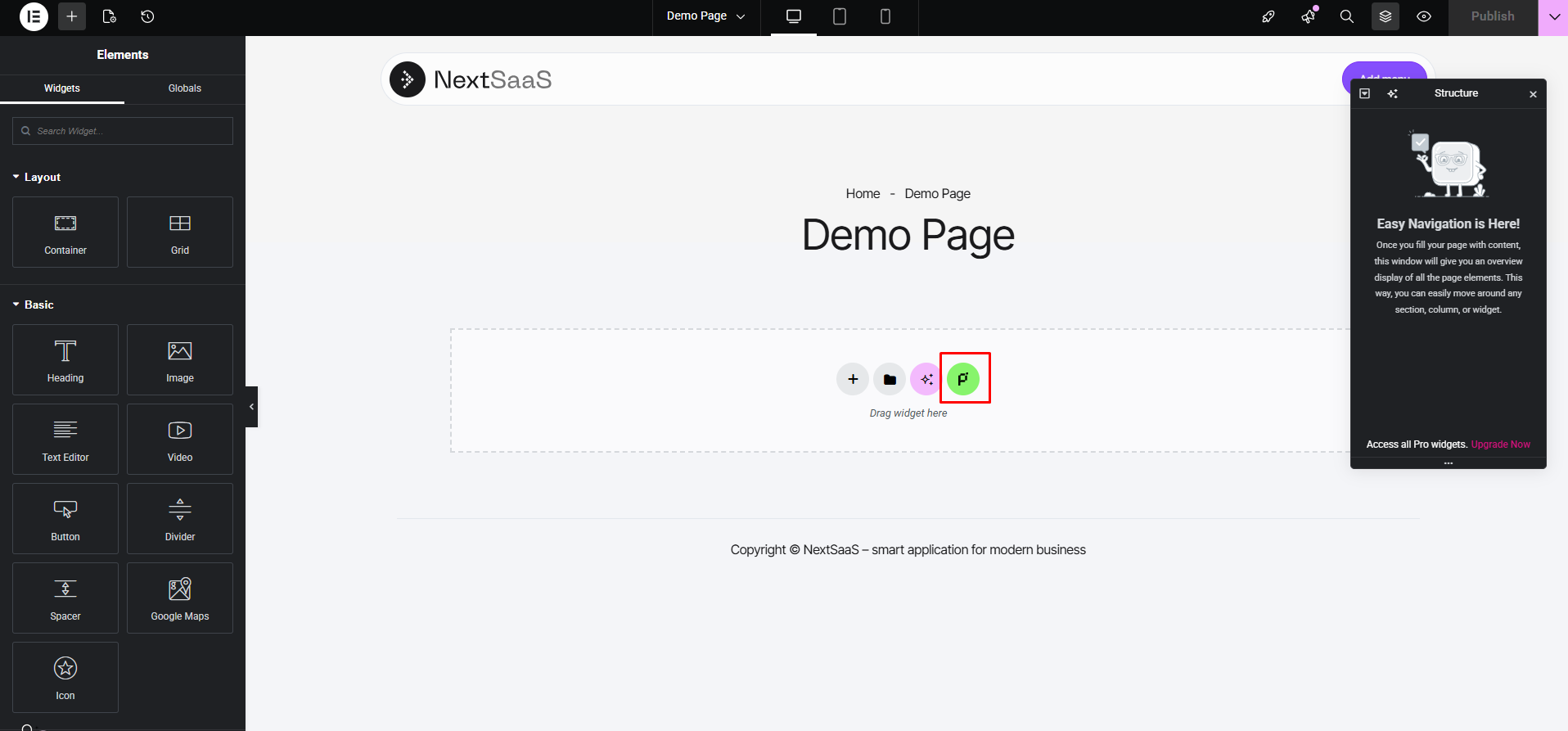
- Edit any page with Elementor
- Click on the pixels71 icon in the Elementor toolbar
- The Template Library will open in a modal window
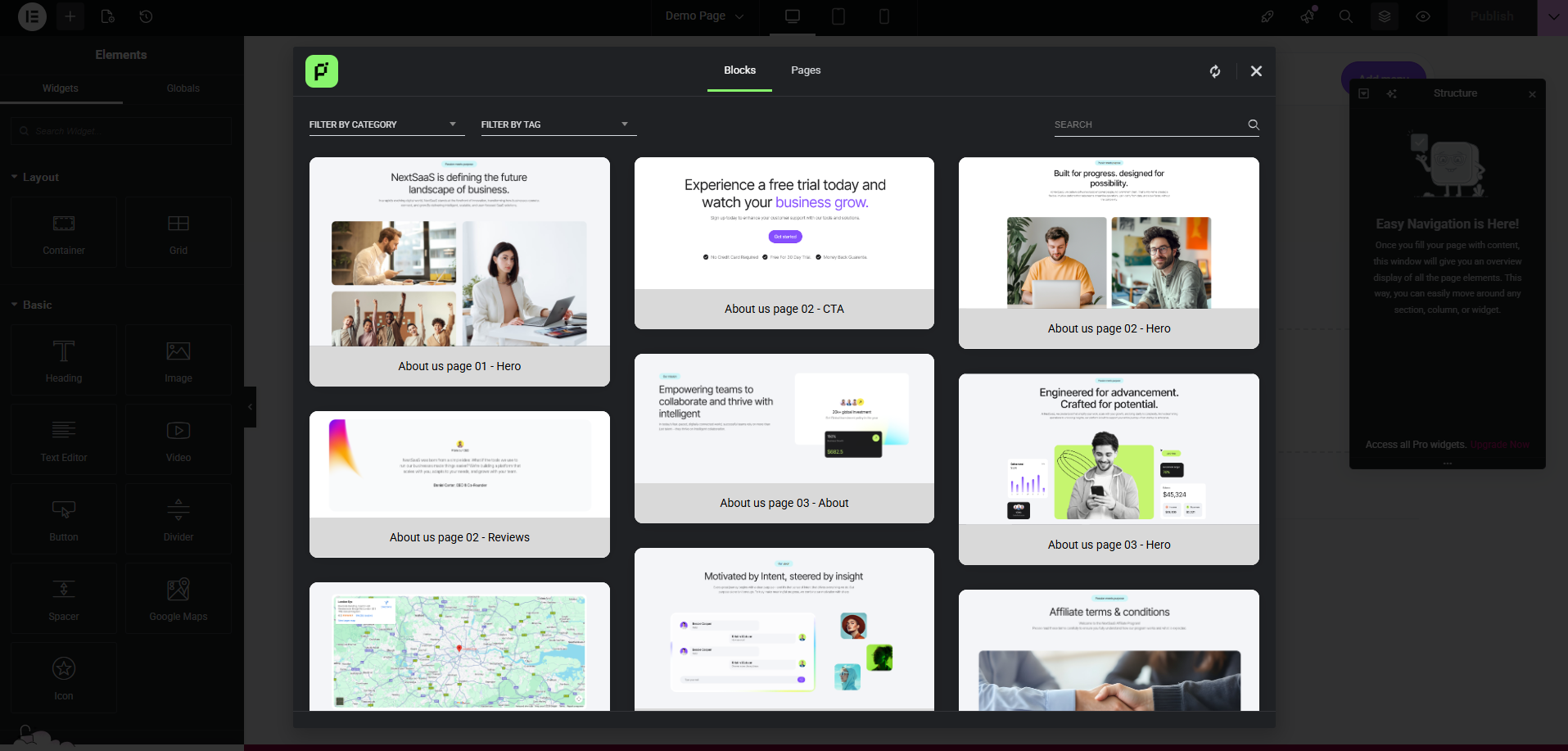
- You'll see two tabs: Blocks and Pages
Template Library Interface#
The Template Library interface consists of several key components:
Tab Navigation
- Blocks Tab: Pre-designed content sections and blocks that you can insert into your page
- Pages Tab: Complete page templates that replace your entire page content
Filtering Options
Filter by Category:
- Browse templates organized by category (Hero, About, Services, Testimonials, etc.)
- Select a category to see only relevant templates
- Useful for finding specific types of content blocks
Filter by Tag:
- Filter templates by tags (Modern, Dark, Light, Minimal, etc.)
- Helps narrow down templates by style or design approach
- Multiple tags can be applied for refined searches
Search Functionality
- Use the Search bar with magnifying glass icon
- Type keywords to find specific templates
- Search works across both Blocks and Pages
- Results update in real-time as you type
Using Blocks#
Inserting a Block
- Open Template Library: Click the Plus (+) icon or template library icon
- Select Blocks Tab: Make sure you're on the "Blocks" tab
- Browse or Search: Use filters or search to find the block you want
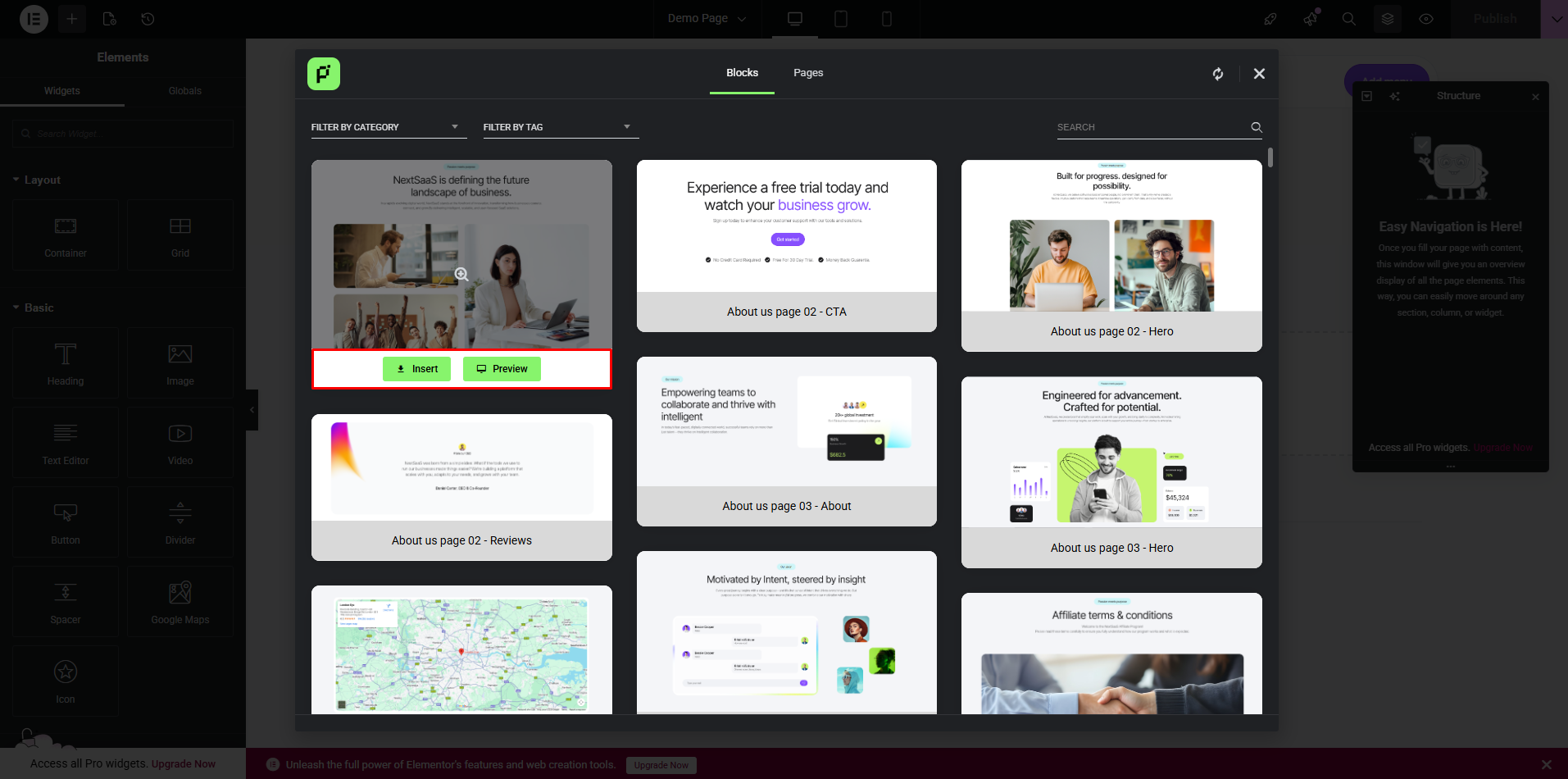
- Preview: Hover over a block to see a larger preview
- Click Insert: Click the green Insert button on your chosen block
- Block Added: The block will be inserted at your current cursor position
Previewing Blocks
Before inserting, you can preview any block:
- Hover over a block thumbnail to see a larger preview
- Click the Preview button (eye icon) for a full preview
- Review the design, layout, and content
- Close the preview and decide if you want to insert it
The Template Library is a powerful tool that can significantly speed up your website building process. Take advantage of the pre-designed templates to create professional pages quickly, then customize them to make them uniquely yours!